



1. Read This First!
You can use HNN to research EEG/MEG signals through either a graphical user interface (GUI) or a Python API. Tutorials on how to begin to use HNN to study the multiscale origin of ERPs and low frequency oscillations for both interfaces are available in our online textbook. We recommend starting with the GUI tutorials before moving to the API, which unlocks advanced features not available in the GUI.
GUI: Graphical User Interface
First is the GUI, short for “Graphical User Interface”. An example is shown below:
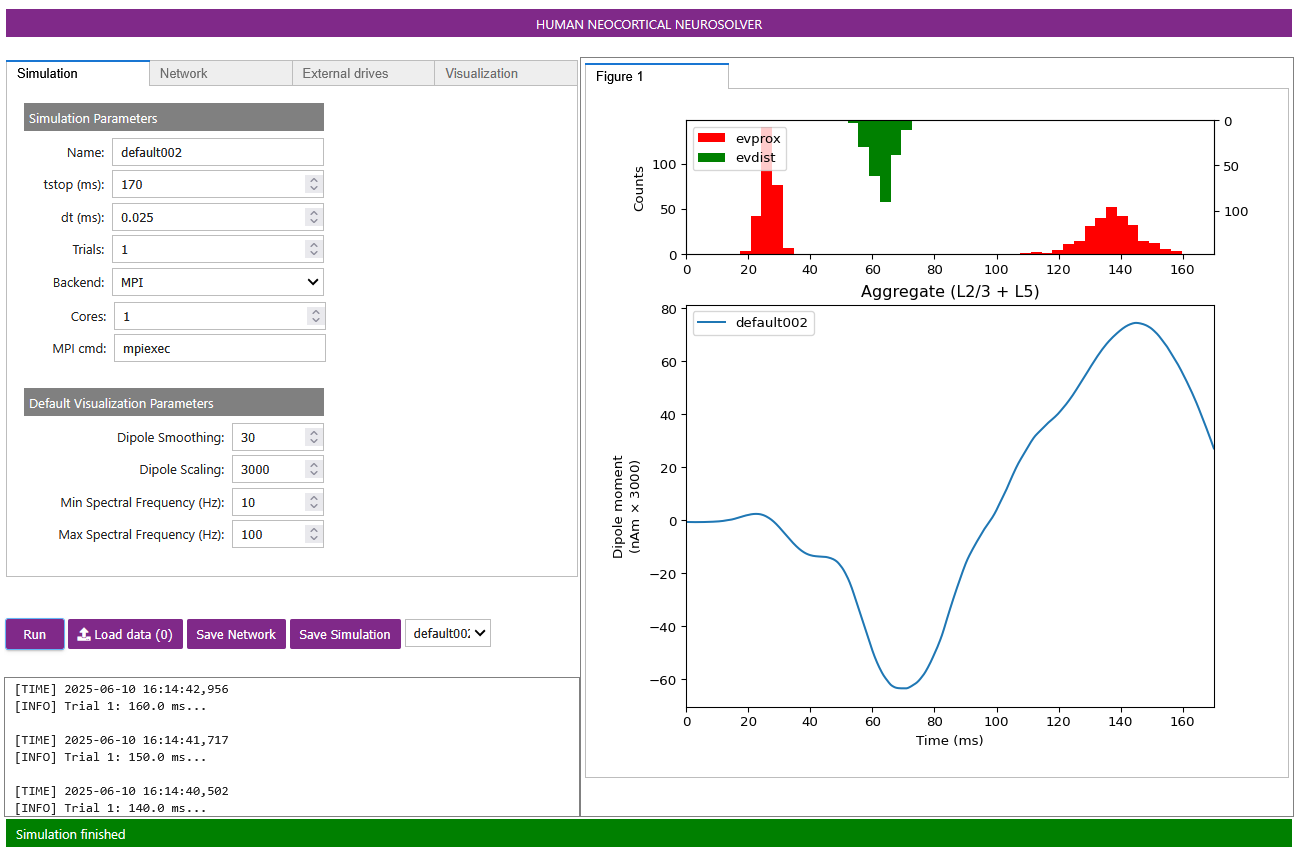
Figure 1 shows an example of the HNN-GUI with an evoked response simulation. The GUI is designed to be an interactive interface to teach users how to manipulate and visualize multiscale neural components contributing to source localized MEG/EEG signals (i.e. dipoles). Users can freely explore the impact of changing parameters on resulting multiscale neural dynamics, from cell- and layer-specific spiking to macroscale current dipoles. GUI adjustable parameters include local network connections, biophysical properties of the cells and synapses, and properties of exogenous inputs that activate the network (which we refer to as the “external drives”). You can run the HNN-GUI two different ways:
“In the cloud”: Run the GUI using either this Google Colab notebook or the Neuroscience Gateway Portal for free, as described in our Installation Guide. This is the easiest way to use HNN as no local installation is necessary, but is also the slowest.
Local installation: You can also install HNN to your local computer with just a few steps, by following our Installation Guide. Once installed, you can open the HNN-GUI in the Terminal (on macOS or Linux) or the Anaconda Prompt (on Windows) by first activating your Conda environment, then running the command
hnn-gui. A new tab should appear in your browser, running the HNN-GUI on your computer.
Note that the GUI is always a tab in your web browser (e.g. Google Chrome, Mozilla Firefox, Brave, Safari, etc.). This is true whether you are running it on your local computer or in the cloud!
Once you have the GUI running, check out the GUI Quickstart here.
API: Coding
The GUI can do much of what’s possible in HNN, but it cannot do everything that the Python API (Application Programming Interface), referred to as HNN-Core, has to offer. HNN-Core is a “software library” which means it offers you “functions” and other pieces of code that provide flexibility in designing your own simulation experiments. Using the API means writing code that you save into either Python files (ending in .py) or Jupyter notebook files (ending in .ipynb).
All of the HNN-GUI functionality is possible in HNN-Core, with API tutorials that follow the HNN-GUI tutorials available in our textbook. However, the HNN-Core API enables more customizable simulations, and our API walkthroughs include additional code explanations that are designed to help users build the knowledge and confidence needed to use the API for scientific research. Example advanced functionality in the API includes: designing complex custom local networks or external drives, running a large number of “batch” simulations, speeding up your simulations with MPI parallelism, performing long optimization runs, customizing analysis and visualizations, and more.
You can run the HNN-Core API via two ways:
“In the cloud”: via the Google Colab notebook here.
Local installation: When possible, we recommend installing it locally on your machine, as described in our Installation Guide.
All API tutorials on this Textbook website, such as the one here, have a button at the top marked Download Notebook where you can download the page and code as a Jupyter notebook file. If you have installed HNN-Core locally, then you can edit and/or run the code in these notebook files and build your own workflows off of them (see our Installation Guide for details on how to install Jupyter notebooks).